

Getting Started
Welcome to Cardsembly, a visual editor to build custom HubSpot cards without writing any code.
Once you’ve created your Cardsembly account, you’ll be guided through a simple three-step onboarding process:
- Connect your HubSpot account
- Choose where to display your card
- Add your card to the HubSpot view
1. Connect HubSpot
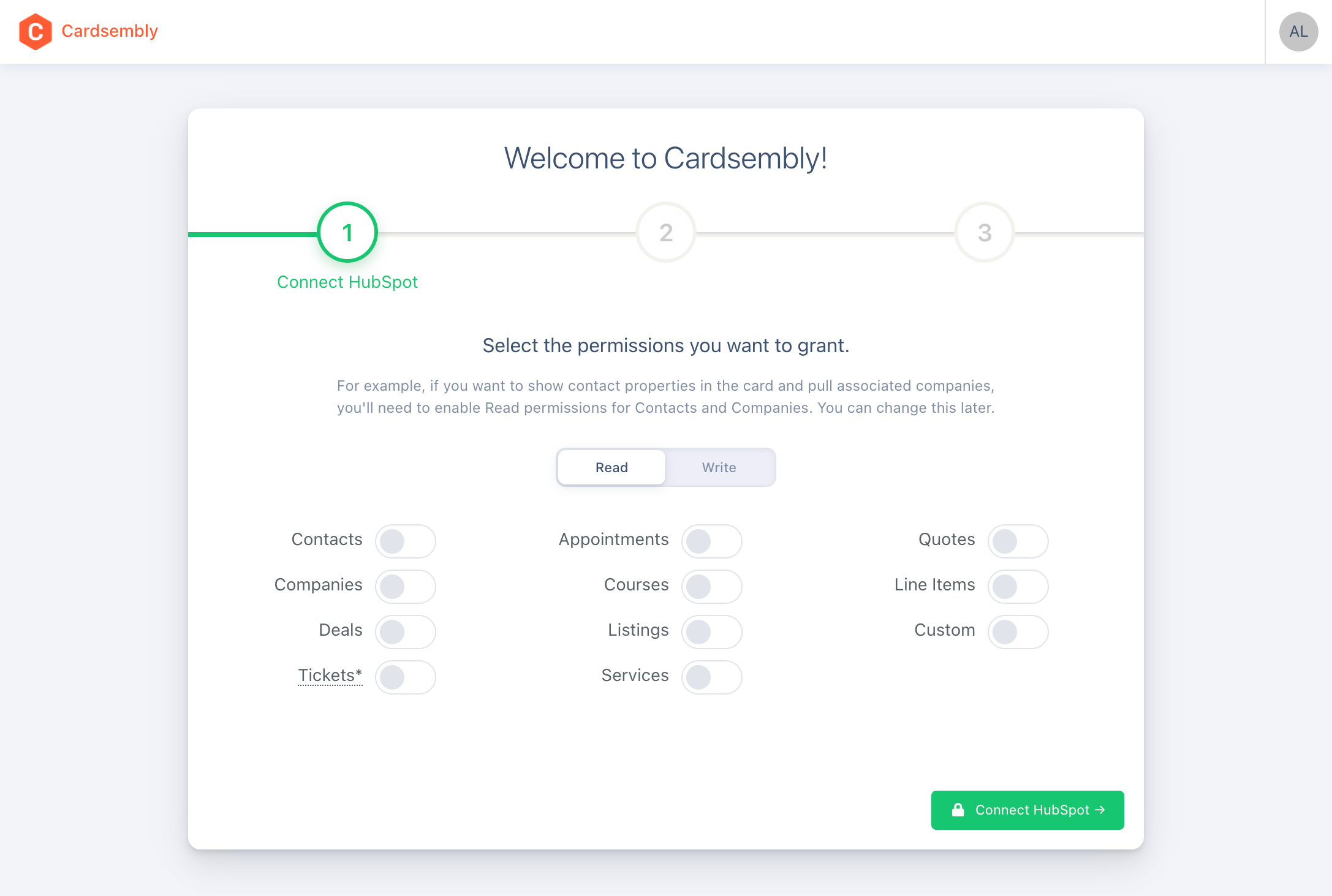
Connect your HubSpot account to begin building custom cards.
During this step, you can choose exactly which permissions to grant, giving you full control and transparency over what data Cardsembly can access.
For example:
- To display cards on Contacts, grant Read Contacts permission.
- To modify Contacts properties, grant Write Contacts permission.
2. Select Card Location
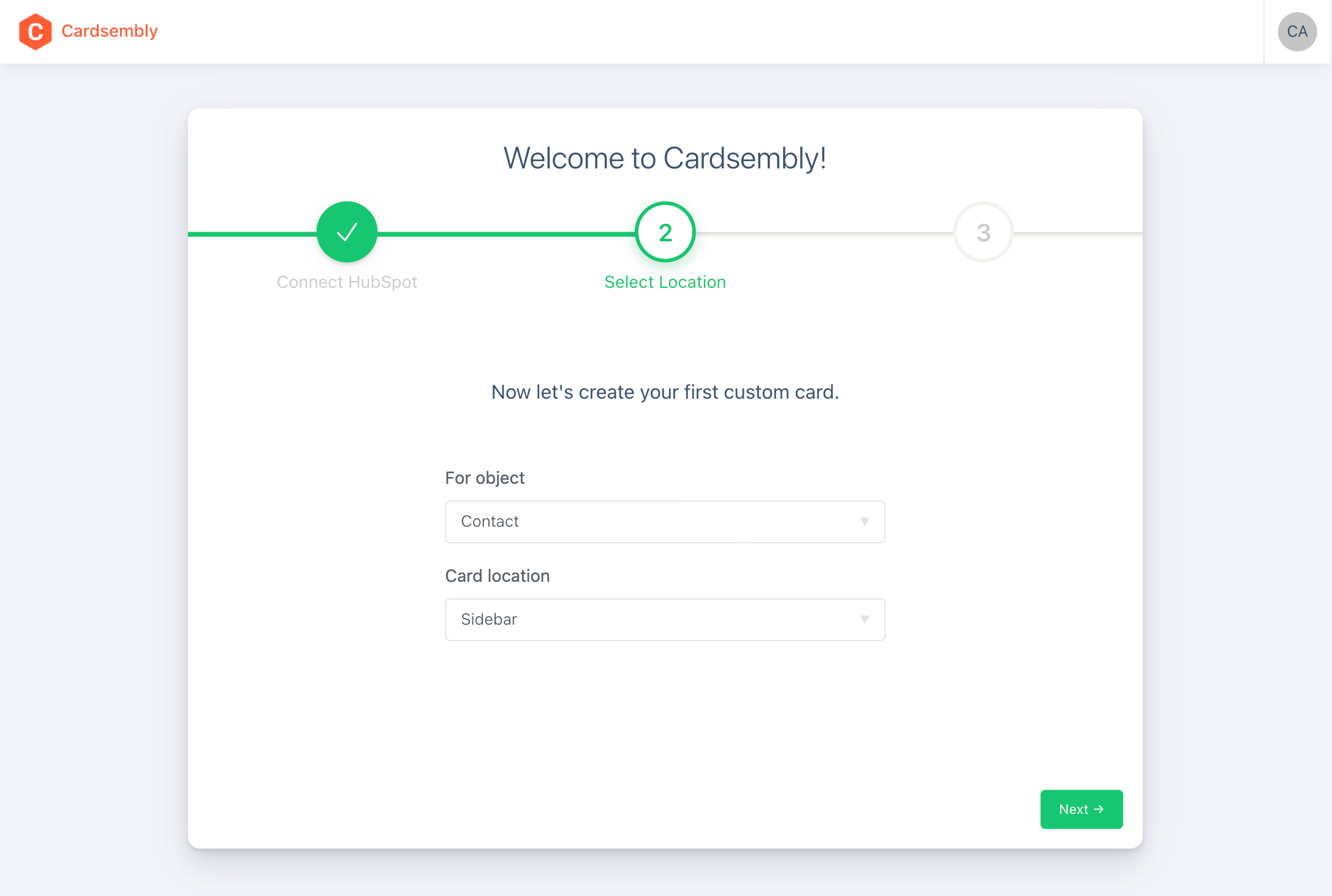
Next, choose where you want your first custom card to appear inside HubSpot.
The object dropdown will list all available objects based on the permissions you granted (e.g., Contacts, Companies, Deals, Tickets, etc.).
Then, pick a card placement from the following options:
- Middle / Tab
- Sidebar
- Sidebar (Preview)
- Help Desk Side (available only for Tickets)
3. Add Card to HubSpot View
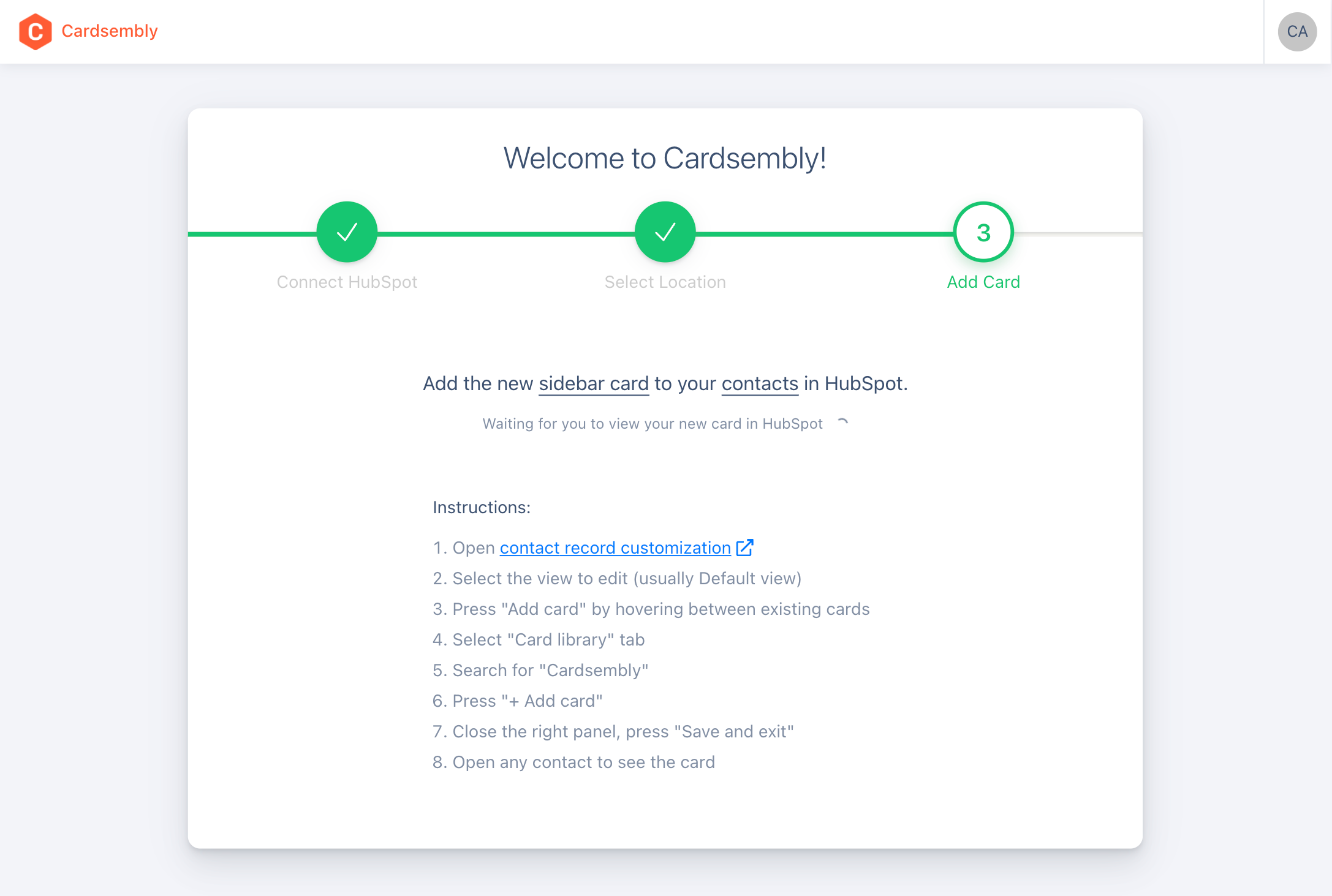
Finally, add your newly created card to a HubSpot view.
For example, if you selected the Contacts object:
- Open any contact record and click ⚙️ Customize.
- Select the view you want to edit (usually Default view).
- Hover between existing cards and click Add card.
- Switch to the Card Library tab.
- Search for Cardsembly.
- Click + Add card.
- Close the right panel and press Save and exit.
- Open any contact, you’ll now see your new Cardsembly card
🎉 All Set!
Once you view the Cardsembly card in your HubSpot, your onboarding is complete and you can start building and customizing cards.
Customizing Your First Card
Watch the video below on how to customize your first Cardsembly card.
Uninstalling Cardsembly
If for any reason you need to uninstall Cardsembly then you can do so within your HubSpot integrations settings page. You can find this page by opening HubSpot and navigating to:
Settings > Integrations > Connected Apps.
Uninstalling Cardsembly will not affect your HubSpot data in any way. If you wish to reinstall Cardsembly then you can follow the setup guide above.